Three ways of using Refine with animation, tried on the same dancing character (LOD 4, about 6 % of the original triangles). Each worked; which one works best depends on the character and the animation.
Frame source: Auto (top-K worst frames), K 16, Surface budget 70 %, then Refine with animation. Result: 1.85 / 3.95.
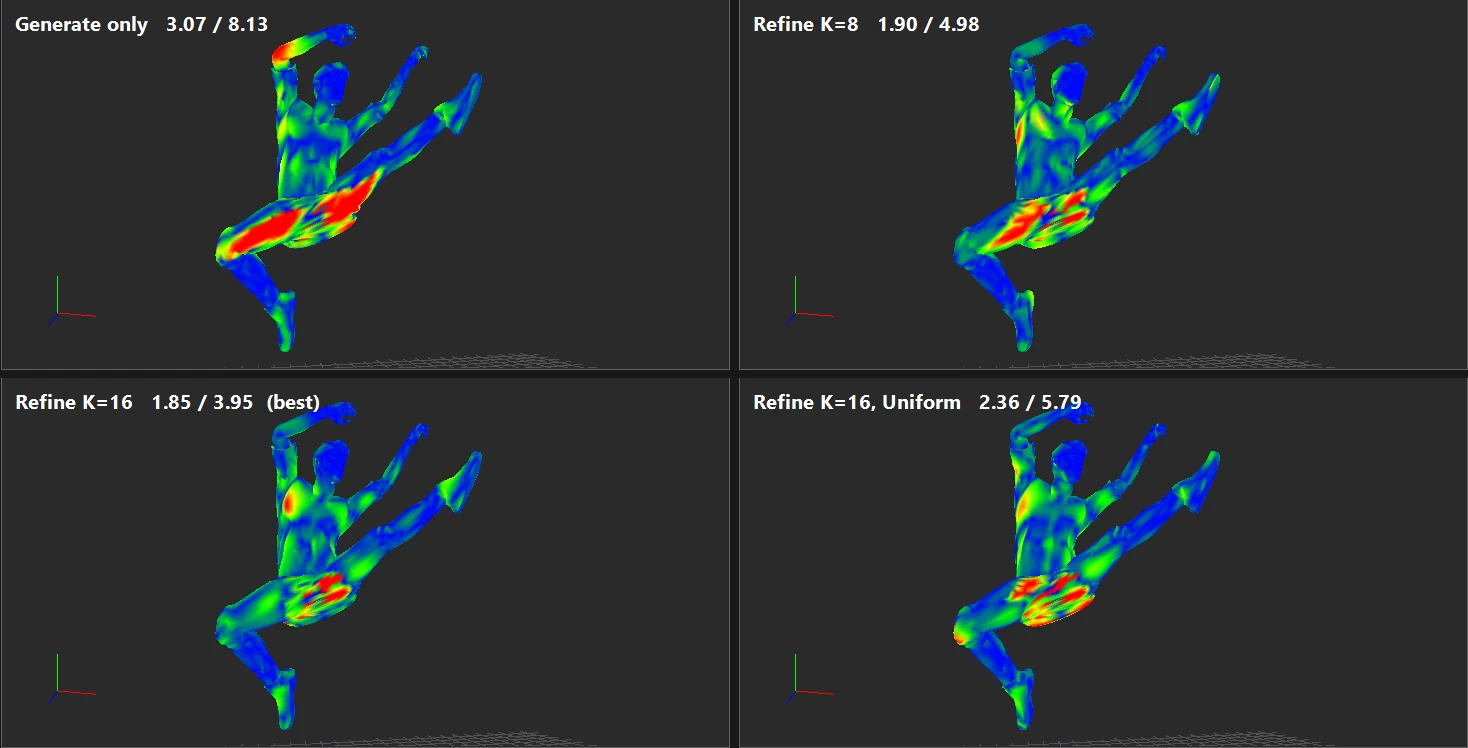
Changing K or the budget changes the result, and not always in the obvious direction — see Examples & measurements. Refining takes seconds, so trying two or three values is practical.
Frame source: Uniform across clip, K 16. On this character: 2.36 / 5.79 — a clear improvement over no refinement, but less than A. On a second character with a flatter error curve, this option came out ahead (see A new character from scratch).
A more hands-on approach that puts you in charge of which poses count:
| Step | Range added (frames) | Surface | Silhouette |
|---|---|---|---|
| after Generate | — | 3.07 | 8.13 |
| 1 | 451–453 | 2.12 | 4.28 |
| 2 | 870–872 | 1.98 | 4.71 |
| 3 | 983–985 | 2.32 | 4.16 |
| 4 | 368–370 | 2.14 | 4.14 |
| 5 | 897–899 | 1.87 | 4.27 |
| 6 | 471–473 | 1.91 | 3.61 |


| Approach (same character, LOD 4) | Surface | Silhouette |
|---|---|---|
| No refinement | 3.07 | 8.13 |
| A. Auto, K 16 | 1.85 | 3.95 |
| B. Uniform, K 16 | 2.36 | 5.79 |
| C. Six marked ranges | 1.91 | 3.61 |
On this character all three helped. A gave the lowest surface error, C the lowest silhouette error, at the cost of a few minutes of work. Another character may rank them differently.
