A LOD built from the bind pose can fail in poses the bind pose never shows. The deviation
timeline measures this over your animations, and Refine with animation rebuilds the
LODs taking selected poses into account.
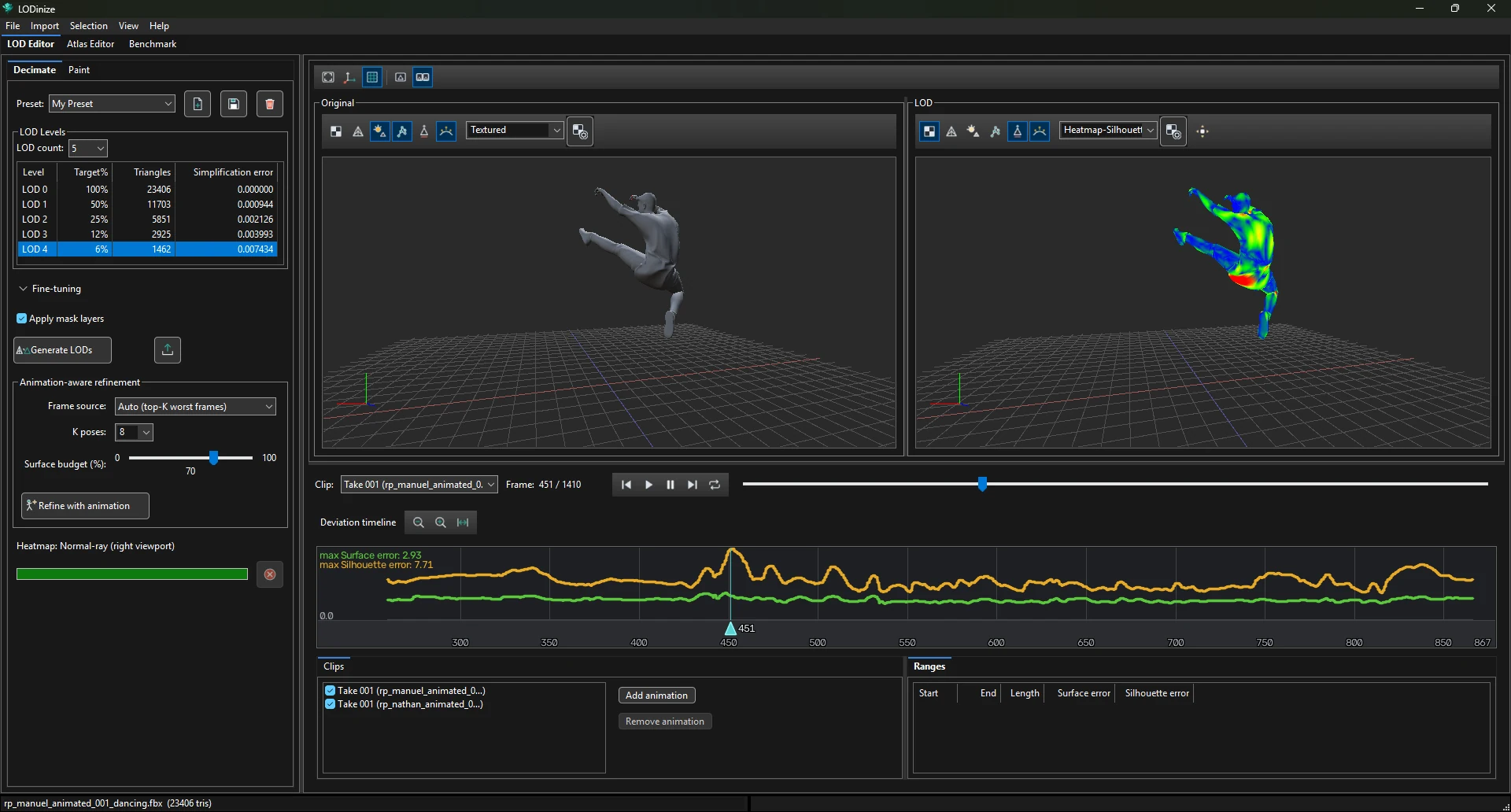
The silhouette error (orange) and surface error (green) of the selected LOD for every frame. Blue bands are marked ranges.
The curves cover all ticked clips, one after another. Frame numbers are counted across them.
The header shows the max Surface error and max Silhouette errorover the visible part of the timeline — zoom out fully (fit button) to read the maximum
over everything.
The vertical axis scales itself to the highest value, so the tallest peak always reaches the top.
Compare the numbers in the header, not the height of the curve, when judging an improvement.
Buttons next to the title: zoom out, zoom in, fit.
Click (or drag in the strip under the curves) to move the playhead; the viewports follow.
Zoomed in on the highest peak; the heatmap in the LOD viewport shows the body part responsible.
Frame ranges
Ranges mark frames you care about — the worst moments of the animation, or poses that must look
right. They are listed under Ranges with their own surface and silhouette error, and
they are what the From marked ranges frame source refines for.
On the timeline
Result
Drag
Create a range over the dragged frames
Drag a range edge
Resize it
Drag inside a range
Move it
Ctrl+click
One-frame range
Ctrl+Shift+click
Find the highest point within ±5 frames and create a 3-frame range around it
The Ranges list: start, end, length, and the error inside each range.
Refine with animation
Refine with animation rebuilds all LOD levels from the original mesh, this time
taking a set of K animation poses into account. It optimises for the level
selected in the LOD table.
Frame source
Frame source
Which poses are used
Tends to suit
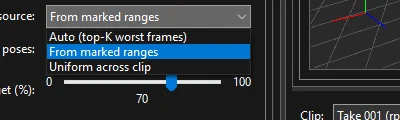
Auto (top-K worst frames)
The K frames with the highest error, measured
when the LODs were generated.
Animations whose error curve has clear, isolated peaks.
From marked ranges
Frames inside the ranges you marked.
When you know
which moments matter, or want to work peak by peak.
Uniform across clip
K frames spread evenly over the evaluated clips.
Error curves without pronounced peaks.
These are tendencies observed on sample characters, not rules — see
Examples & measurements. Trying more than one is cheap.
K poses and Surface budget
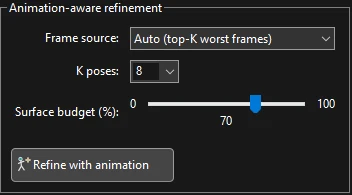
K poses — how many poses are evaluated (1–256; pick from the list or type a number).
More poses is not automatically better: on a sample character K = 16 did better than
K = 32 or 64.
Surface budget (%) — how the K poses are split between the two error measures:
0 = all chosen for silhouette error, 50 = balanced, 100 = all for surface error.
How refinement behaves
It starts from what Generate measured. The Auto frame source picks its frames from the error
recorded by the last Generate LODs. If you add or tick a clip afterwards, run
Generate LODs again first; otherwise the new clip's frames are not known to it.
It replaces the LOD set. Each refine rebuilds all levels from the original mesh; the result does
not build on the previous refine. Pressing it twice with the same settings gives the same LODs.
To explore, change a setting — frame source, K, budget, or the marked ranges — and refine
again.
A refine of a character with around 20 000 triangles took about 12 seconds on a desktop PC,
even with K = 64.
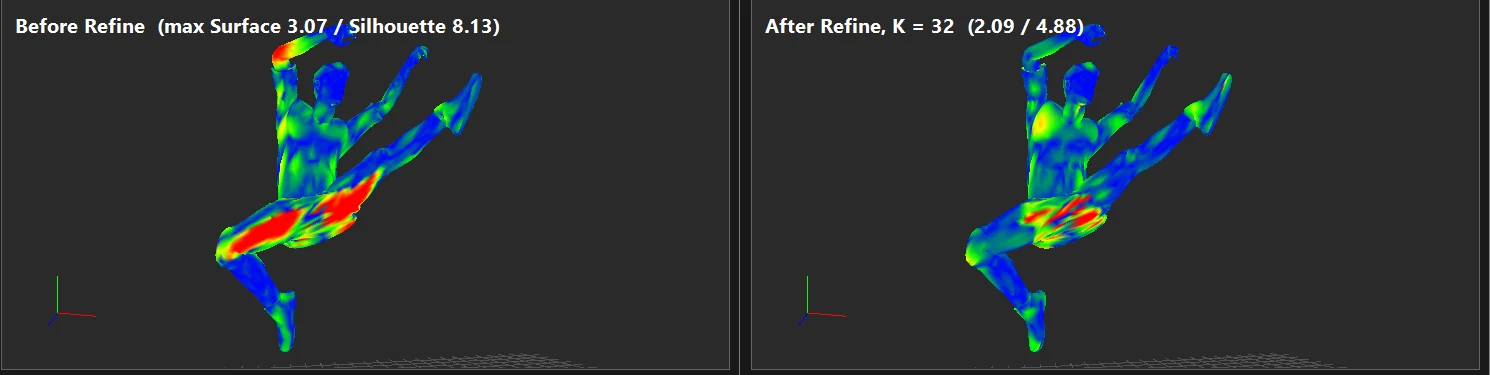
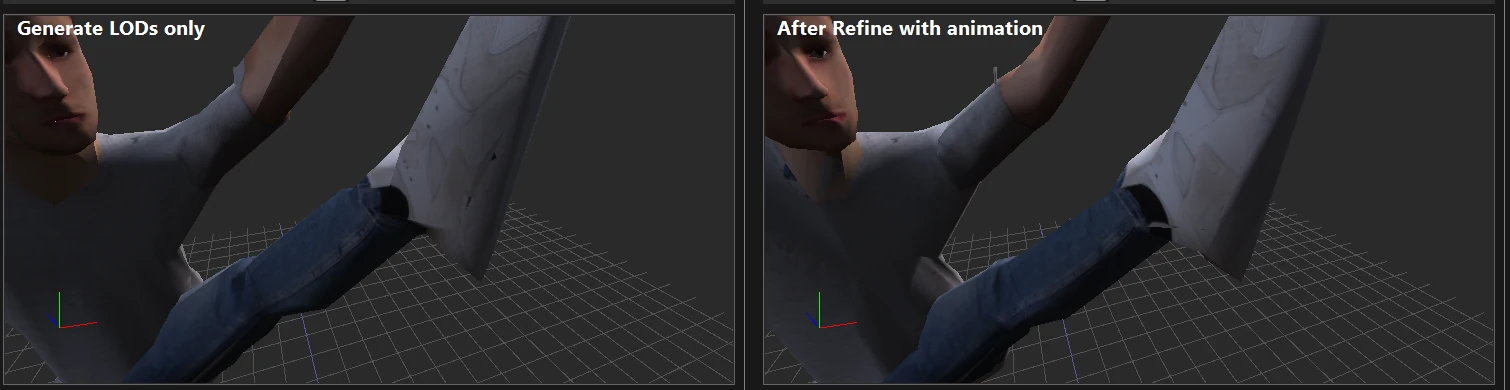
Silhouette heatmap at the same frame before and after refinement; the maximum silhouette
error fell from 8.13 to 4.88.The same area rendered solid: after refinement the ankle and shoe keep more volume.