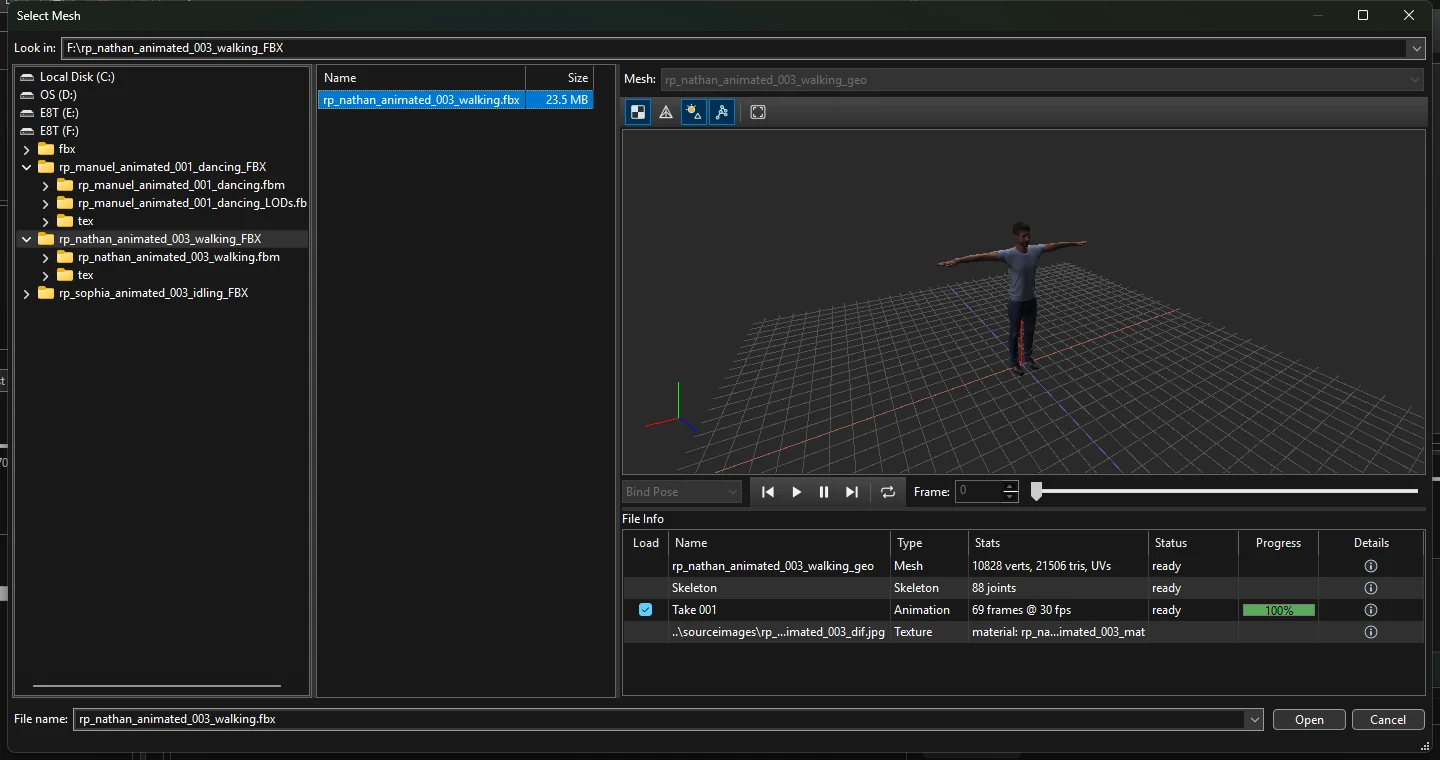
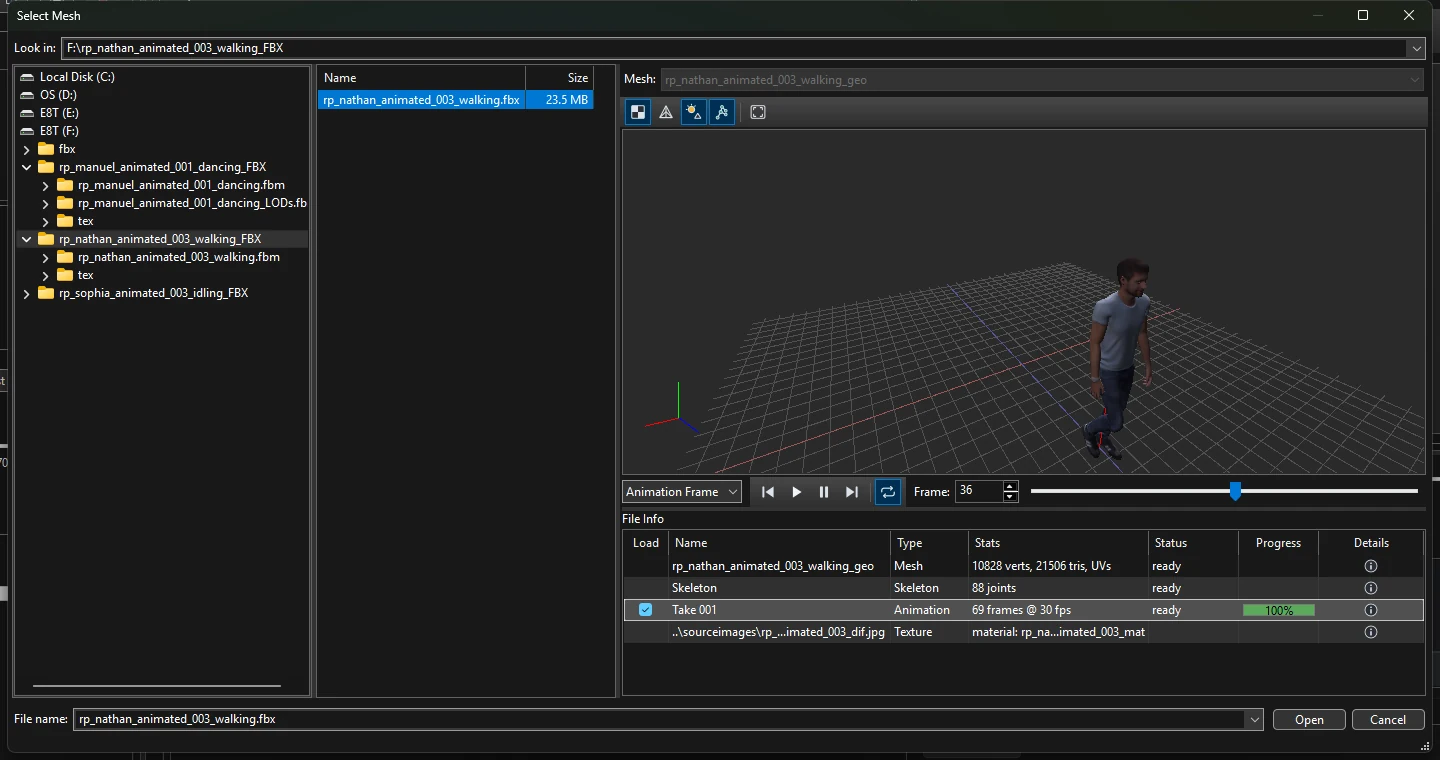
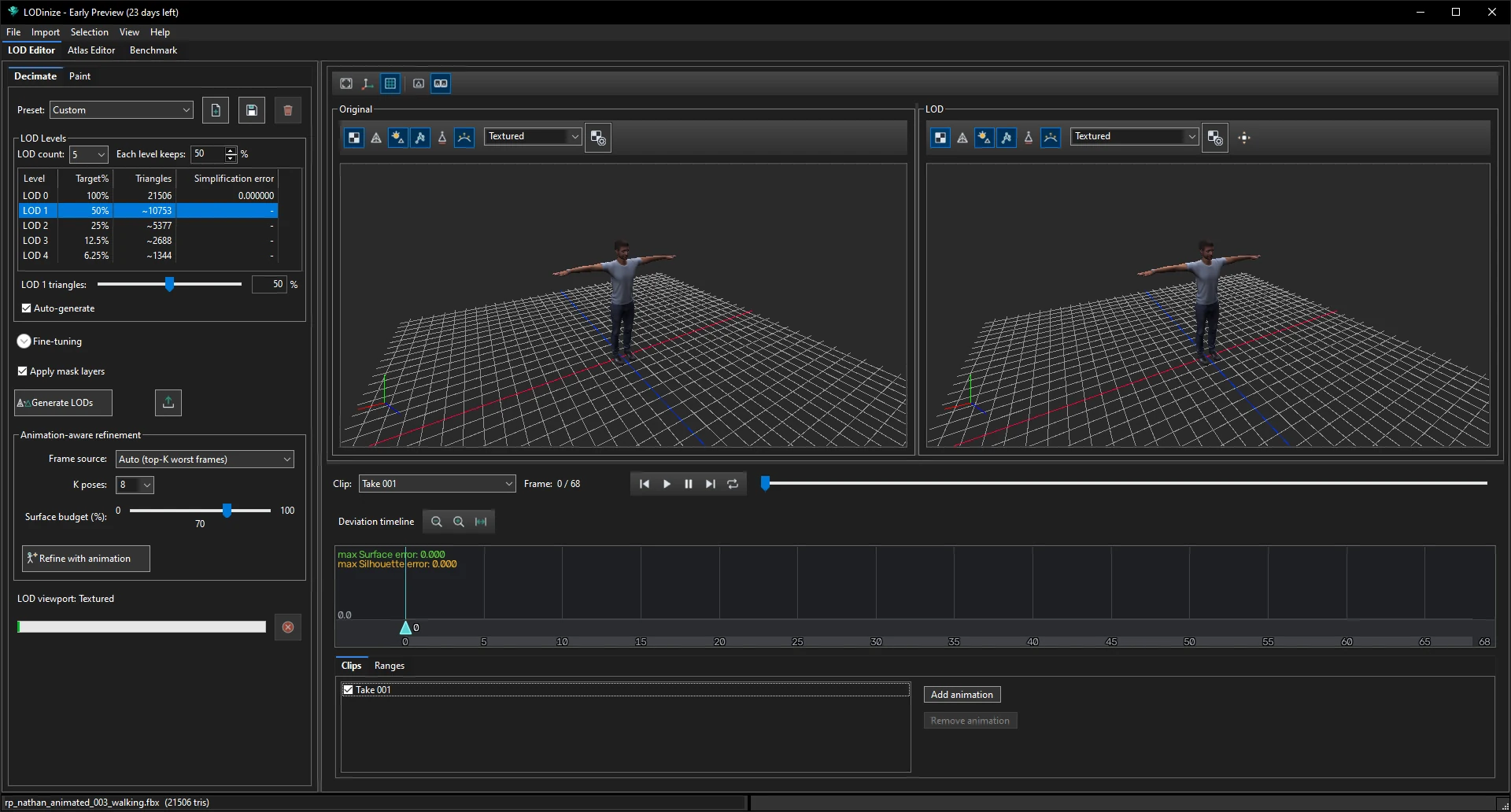
Example: a walking character (21 506 triangles) is optimised for its walk, then a dance
recorded on a different character is added and the LODs are refined for both.
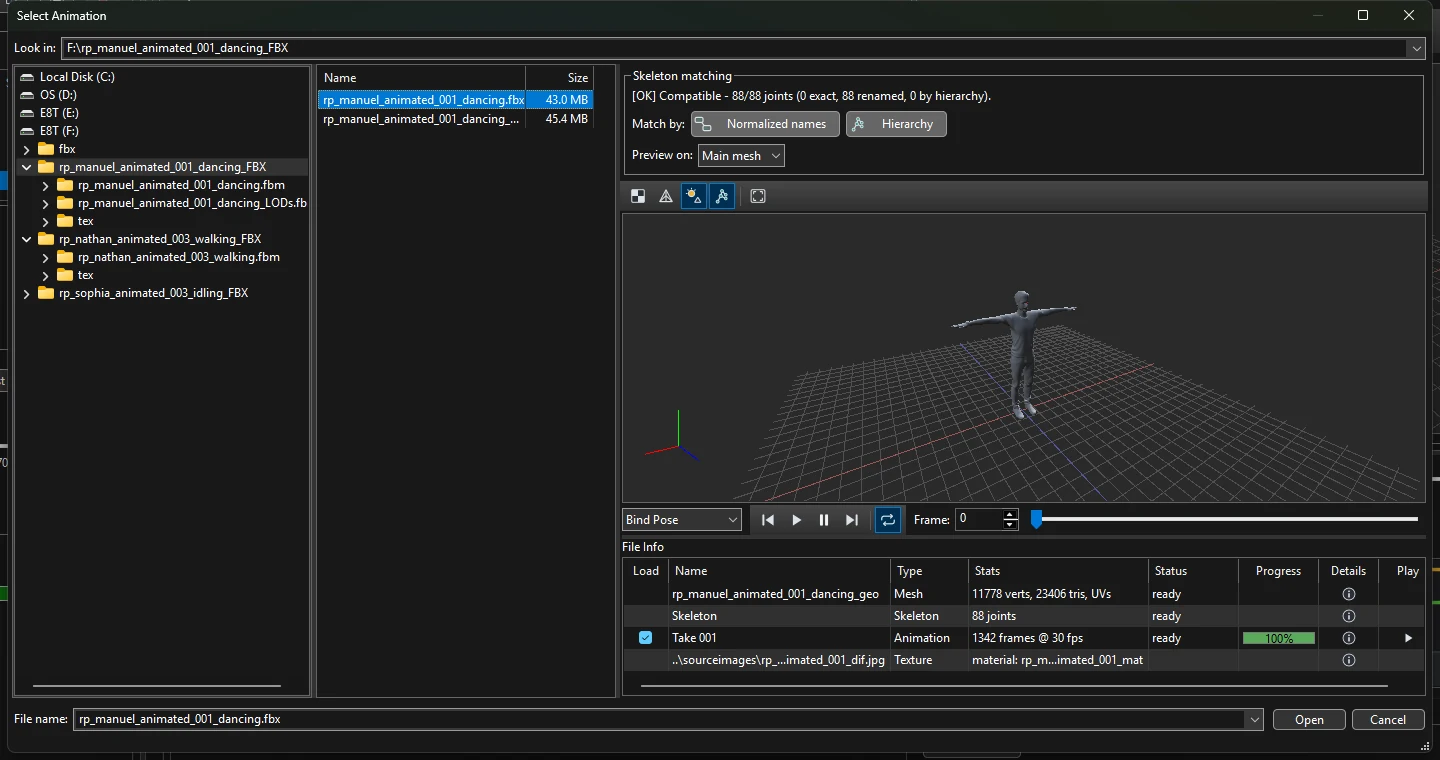
Browse to the character's FBX and click it. The preview and the File Info table show
what the file contains: here one mesh (10 828 vertices, 21 506 triangles, UVs), an 88-joint
skeleton, one 69-frame walk at 30 fps and a diffuse texture.
Turn on texturing in the preview, click the animation row, press Play. The i buttons show more
detail per item — see File details.
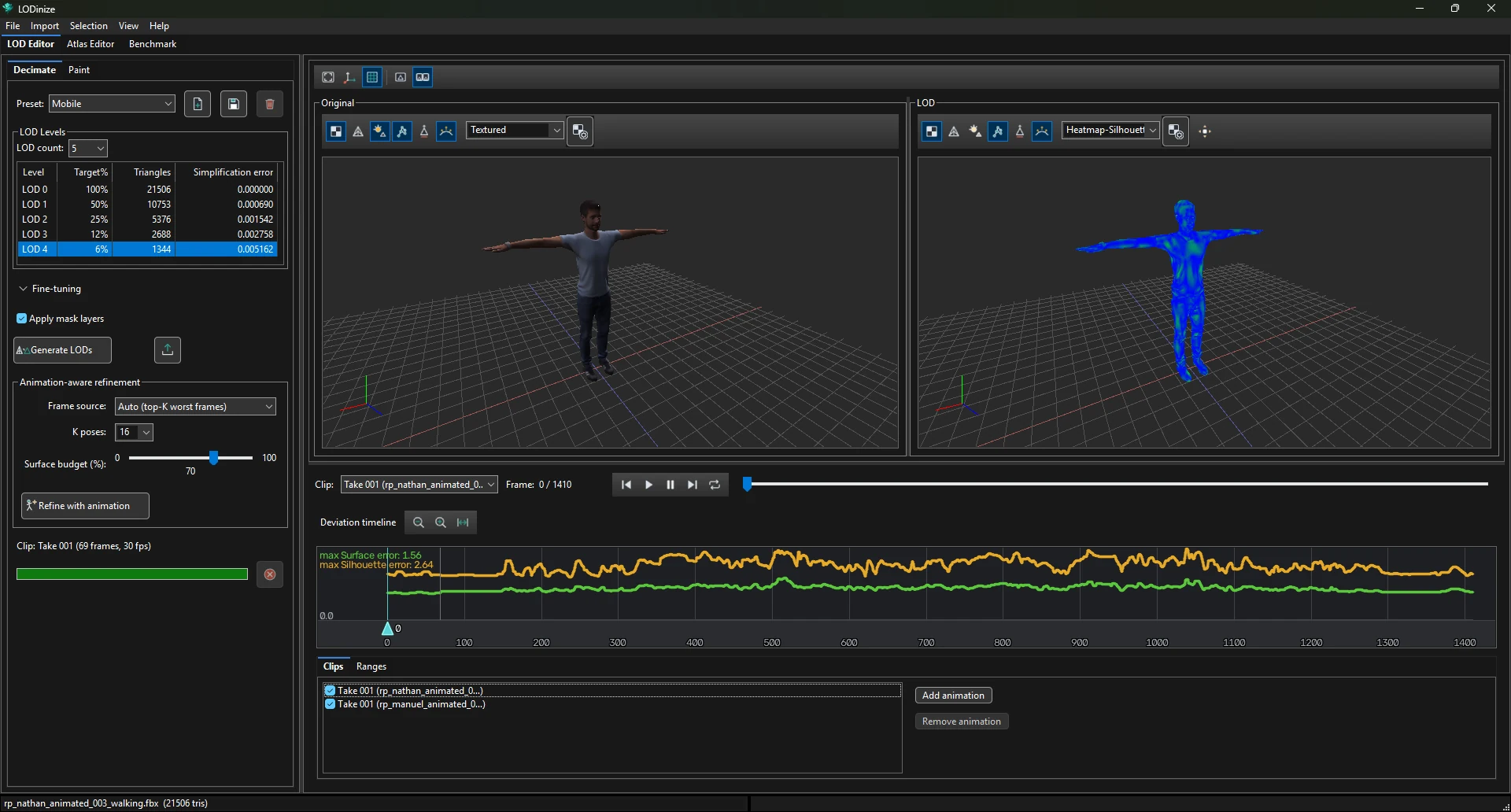
Click Open. In the LOD Editor, switch on Texturing in the
viewport toolbars if the character appears grey.
2. Generate and refine for the walk
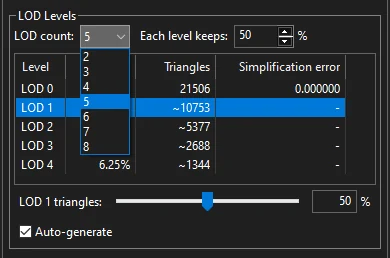
Keep the five default levels (or pick a preset or another LOD count) and click
Generate LODs.
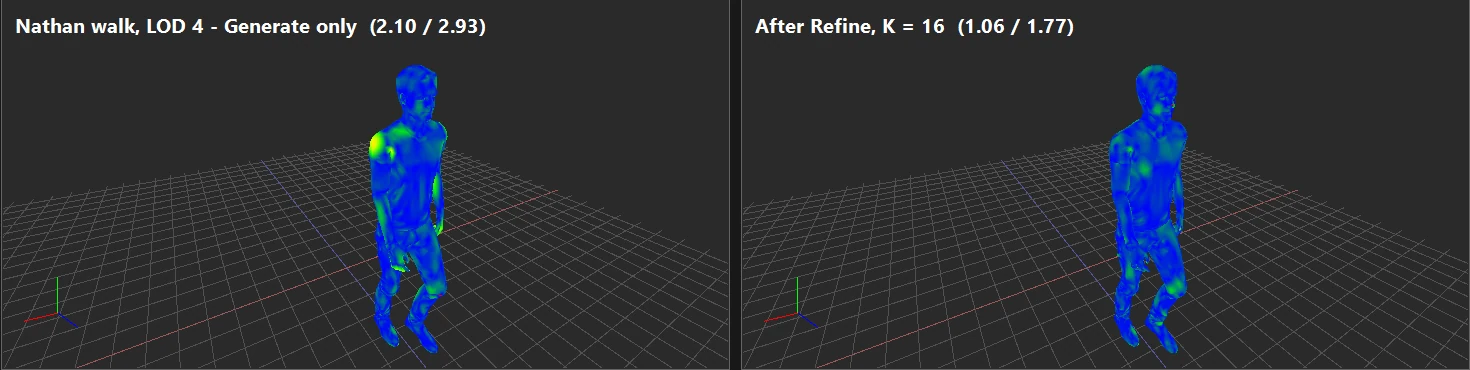
Select LOD 4 and read the timeline header: max surface / silhouette error 2.10 / 2.93.
Refine with animation (in this example Auto, K 16, budget 70 %): 1.06 / 1.77.
3. Add a second animation
Import > Load Animation and pick the file with the dance. The
Skeleton matching panel reports all 88 joints compatible — matched after name
normalisation, because the joint names carry the other character's name.
Preview the dance on your character (Preview on: Main mesh) and on the file's own
character (This FBX's mesh) at the same frame to check the retargeting.
Leave Load ticked for the clip and click Open.
The new clip is listed in Clips but unticked, so it is not yet evaluated.
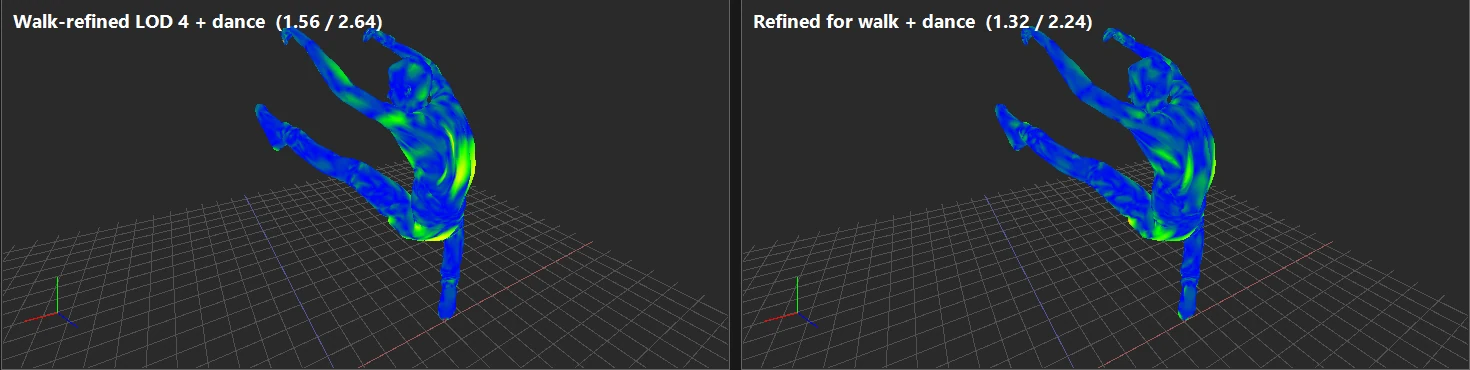
Tick it: the timeline now covers walk + dance, and the walk-tuned LOD 4 reaches 1.56 / 2.64.
4. Refine for both animations
Run Generate LODs again now that both clips are ticked. Refinement picks its
frames from what Generate measured, so this step lets it see the dance. (Plain LOD 4: 2.64 / 3.86.)
Refine and compare frame sources. In this example:
Frame source (K 16, budget 70 %)
Surface
Silhouette
Auto (top-K worst frames)
1.41
2.56
Uniform across clip
1.32
2.24
On this character, whose error curve has no single dominant peak, the even spread did slightly better.
On a character with sharp peaks the result was the other way round — see
Examples & measurements.
Check the worst dance frame with the heatmap.
5. Export and save
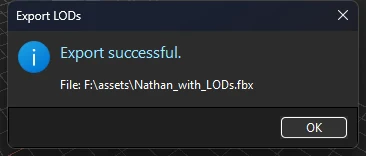
File > Export LODs — here a single FBX with an LOD group.
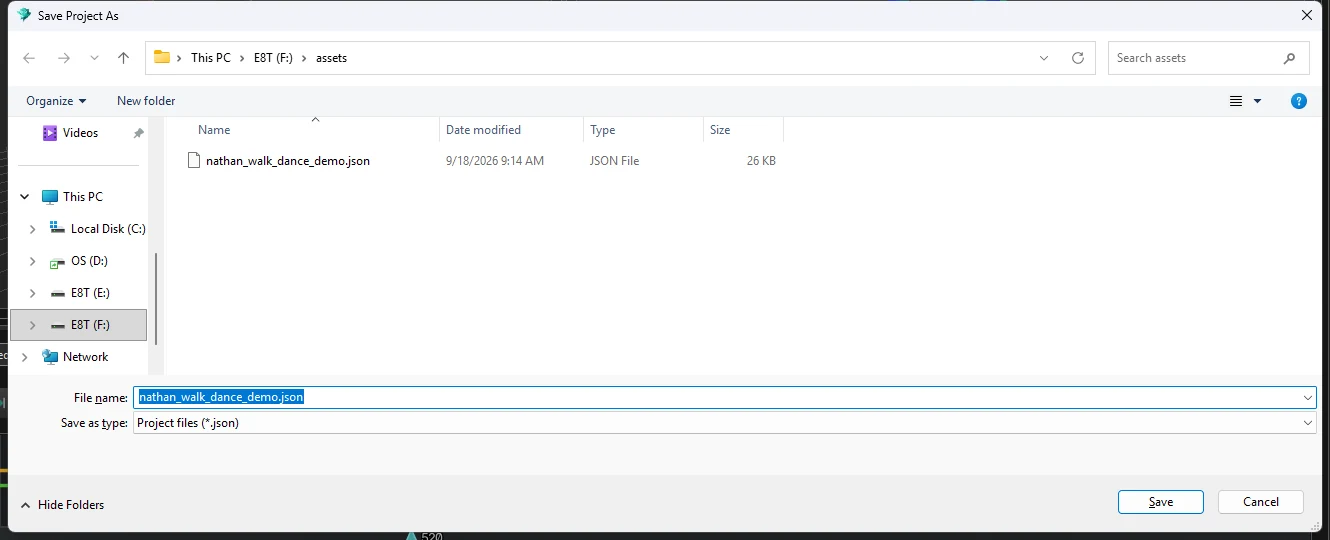
File > Save Project As. The project stores the mesh, both animation files, the
clip selection and the refinement settings.