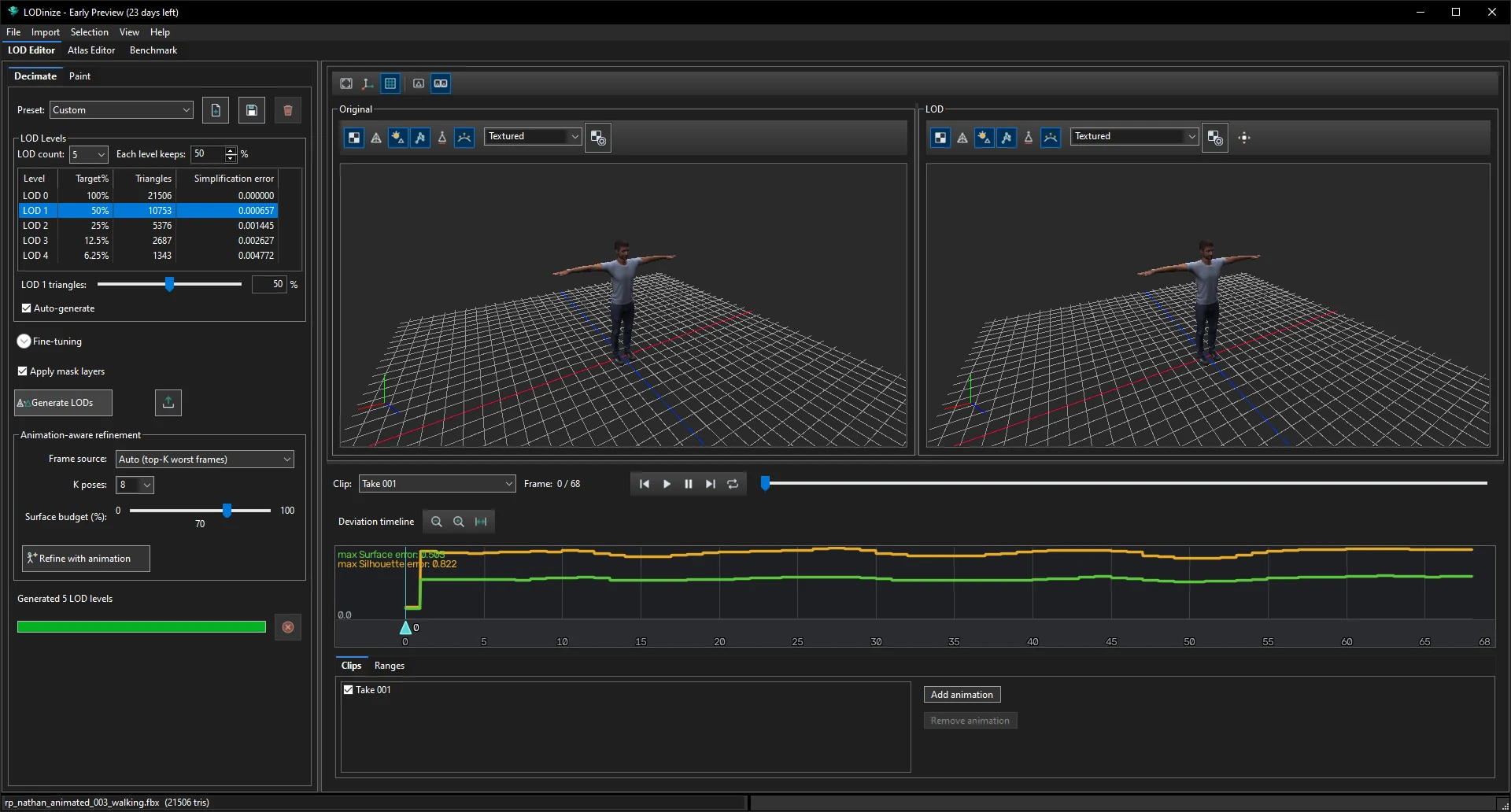
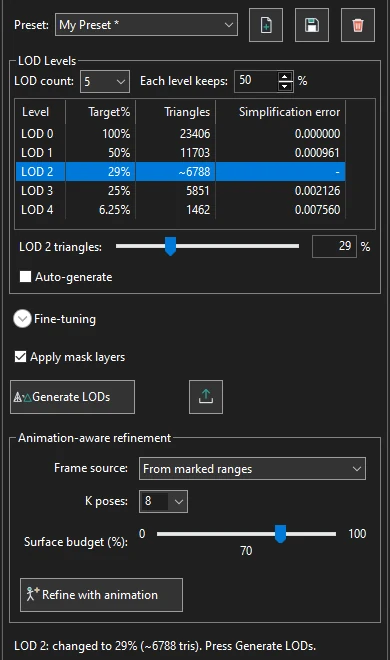
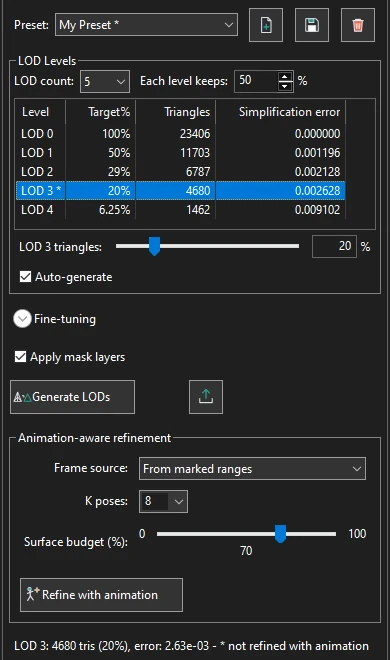
The Decimate tab of the LOD Editor: how many levels, how aggressive, what to preserve — and the table that shows the result.
A preset is a named snapshot of the LOD levels (how many, and each level's target) and of the fine-tuning options. Mobile (100, 50, 25, 10 %), PC (100, 50, 25 %) and VR Quest (100, 40, 15, 5 %) are built in. Picking a preset fills the LOD levels and the options; with Auto-generate on, the levels are built right away. Custom means the current settings are not a saved preset. LODinize starts there, with five levels that each keep 50 % of the previous one.
| Button | What it does |
|---|---|
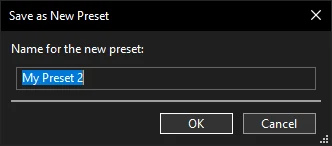
| Save as new preset | Asks for a name (the first free "My Preset N" is suggested) and saves the current levels and options under it. |
| Save preset | Updates the selected preset with the current settings. With a built-in preset selected it saves a new preset instead, so the built-in ones never change. |
| Remove preset | Deletes the selected preset of your own (built-in presets cannot be removed). The settings stay as they are; the list then shows Custom. |
A * after the preset's name means the panel no longer matches the saved preset, for example after you changed a level. Saving the preset removes it. Presets are shared by all your projects; a project stores its levels too, so it opens with the same levels on another PC.
| Control | What it does |
|---|---|
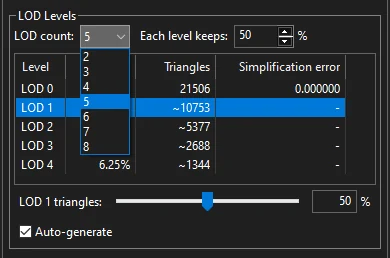
| LOD count | How many levels, 2 to 8. The existing levels keep their geometry: fewer levels drop the coarsest ones, more levels are added at the end of the series. |
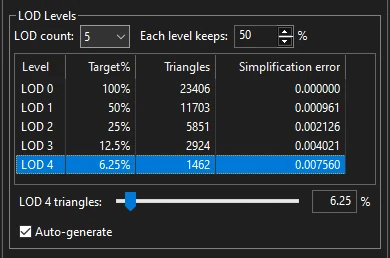
| Each level keeps | 5 to 95 %. Every level keeps this share of the previous level's triangles, so 50 % gives 100, 50, 25, 12.5, 6.25 %. Changing it refills every target in the table. |
| LOD n triangles (slider and box) | The target of the level selected in the table. Drag the slider, or type an exact value from 0.1 to 99.9 % and press Enter. The table stays sorted: a level that passes a neighbour moves to its new place, and the selection moves with it. |
| Auto-generate | On: a changed level is rebuilt in the background as soon as you release the slider, press Enter or pause for a moment; only the changed levels are rebuilt. Off: changed levels wait for Generate LODs. |
| Column | Meaning |
|---|---|
| Level | LOD 0 is the original mesh; higher numbers are coarser. LOD n * marks a level that was rebuilt after Refine with animation, so it is not refined (see below). |
| Target% | Share of the original triangle count aimed for. |
| Triangles | Triangles actually produced. ~ in front of the number marks an estimate (target × original triangles): the level is not generated yet, or its target changed since. |
| Simplification error | The geometric error reported by the simplifier for that level (lower is closer to the original); - while the level is not generated. It is measured on the static mesh; the animated error is shown in the deviation timeline. |
Selecting a row shows that level in the LOD viewport and recomputes the deviation timeline for it. It also chooses which level Refine with animation optimises for.
Expand Fine-tuning for the simplifier's options and weights. Hover a control in the application for its tooltip.
The pane starts collapsed: the defaults suit most characters. Most options here stop the simplifier from removing certain edges, so every extra one leaves it fewer choices and can make the deeper LODs look worse. Turn them on one at a time and compare the result.
| Option | Purpose |
|---|---|
| Skin-weight prior | Take the skinning weights into account when deciding what to simplify, so deforming areas keep their structure. |
| Preserve UV seams | Keep edges along UV seams. A seam-fix method can be chosen: None, Lock all seams, Auto (detect + re-decimate), UV repair. |
| Preserve materials | Keep boundaries between materials. |
| Preserve bone-boundary edges | Keep edges where the dominant bone influence changes. |
| Triangle regularity | Prefer well-shaped triangles over long thin ones. |
| Avoid fins | Reject simplification steps that fold a thin feature into a dark "fin". Protects thin parts (e.g. wings, membranes) but may keep deep LODs slightly denser. |
| Force to triangle count | Hit the requested triangle count exactly, ignoring the quality ceiling. Off: gentle LODs keep a quality ceiling that is relaxed only where needed. |
| Quality Weights: Tri / Skin / UV weight | Relative importance of triangle shape, skinning and UV preservation. |