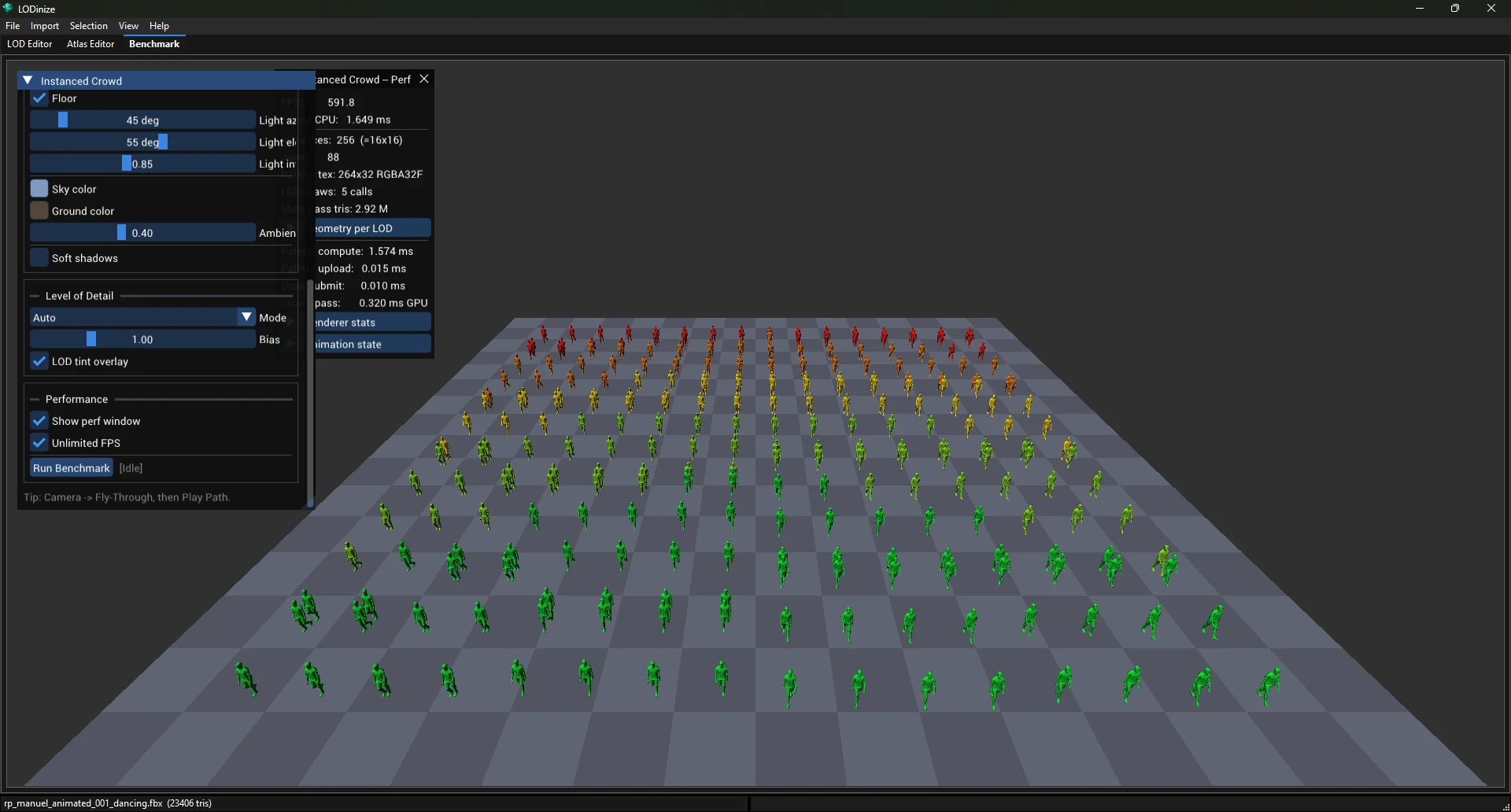
The Benchmark tab renders an animated crowd of your character using the current LODs — a quick way to see the LOD set working at a distance and what it costs.
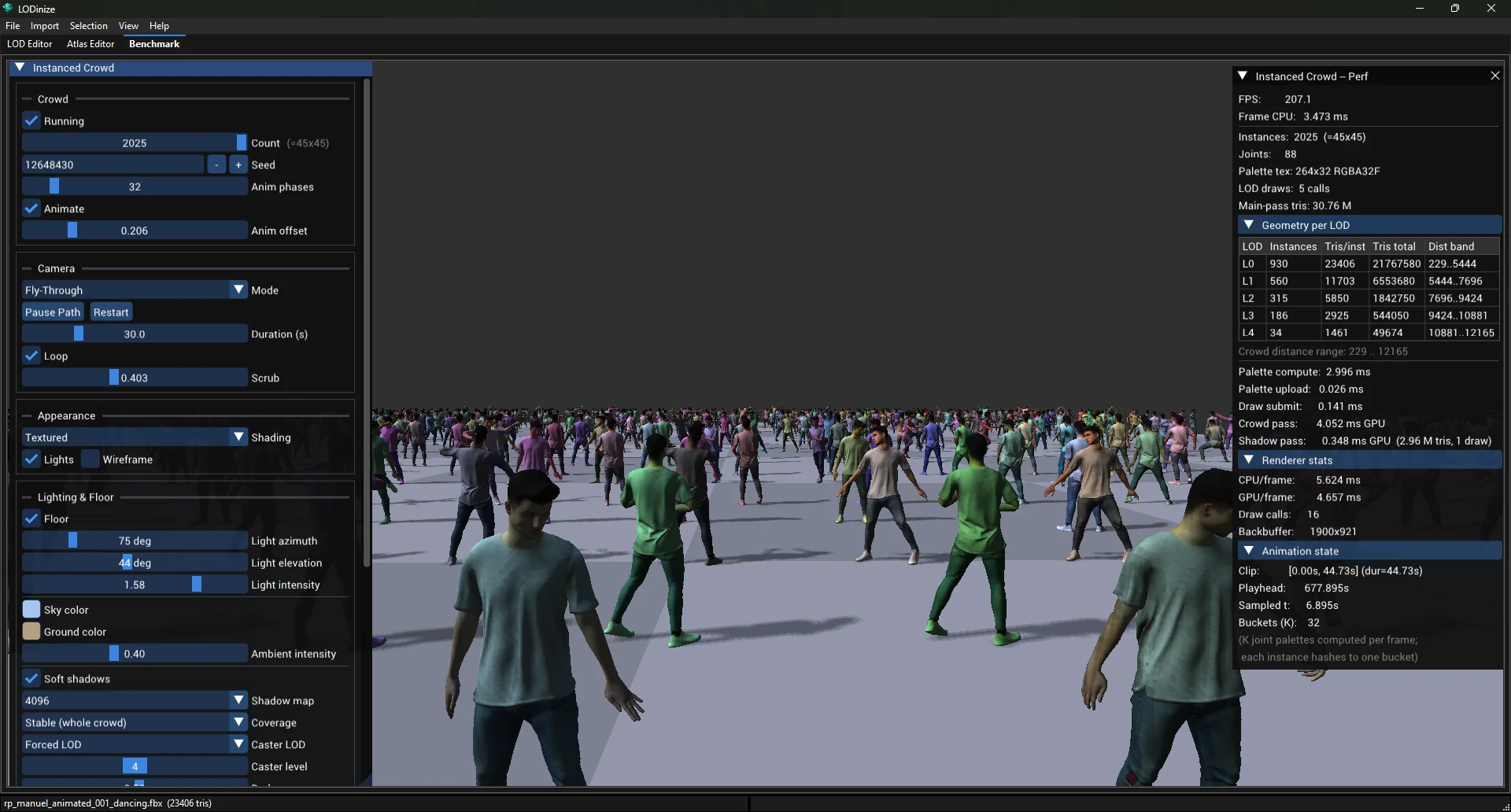
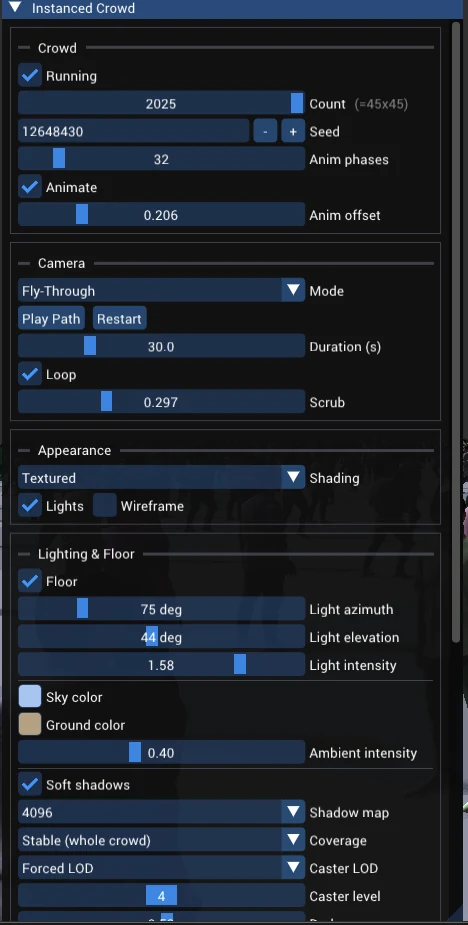
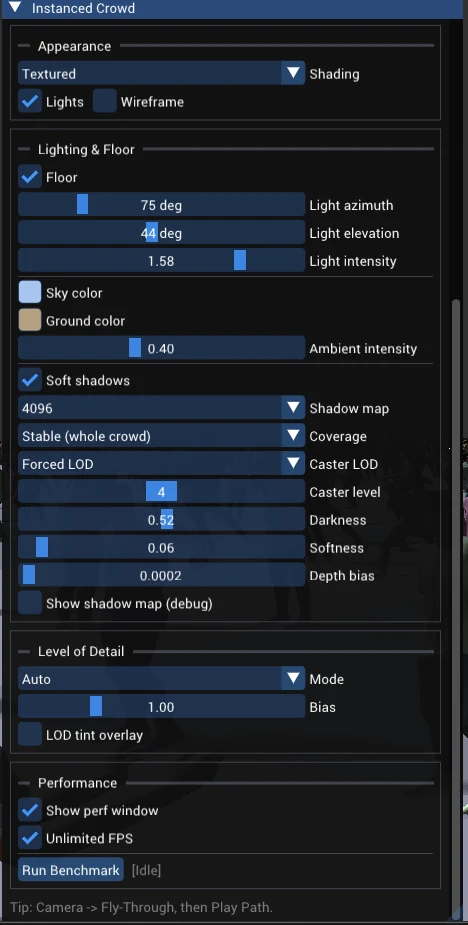
| Section | Settings |
|---|---|
| Crowd | Running starts/stops the crowd. Right under it: Show perf window and Unlimited FPS. Count (instances are laid out on a square grid, up to 45 × 45 = 2 025), Seed (variation), Anim phases (how many different animation offsets), Animate, Anim offset. |
| Camera | Mode: a fixed view that fits the crowd, or Fly-Through along a path (Play Path / Pause Path, Restart, Duration, Loop, Scrub). |
| Appearance | Shading (Solid, Textured, …), Lights, Wireframe. |
| Lighting & Floor | Floor, light direction and intensity, sky/ground colours, ambient, and Soft shadows with shadow-map size, coverage, the LOD used for shadow casters, darkness, softness and depth bias. |
| Level of Detail | Mode (Auto chooses by distance), Bias, LOD tint overlay (colour instances by level). |
| Performance | Run Benchmark. |
The settings panel fills the height of the view and is fitted again when the window is resized. The panels can be moved by their title bar and resized from their lower-right corner; drag the panel's scrollbar to reach the lower sections (the mouse wheel moves the camera). The Perf window opens to the right of the settings.
Defaults and saving. The crowd starts with 256 instances, textured shading, soft shadows (a 4096 shadow map focused on the near view, cast from LOD 4), the camera flying through the crowd and the Perf window open. The settings are saved with the project and kept between sessions; loading a project brings back its settings. Unlimited FPS always starts off, because it affects every 3D view of the application.
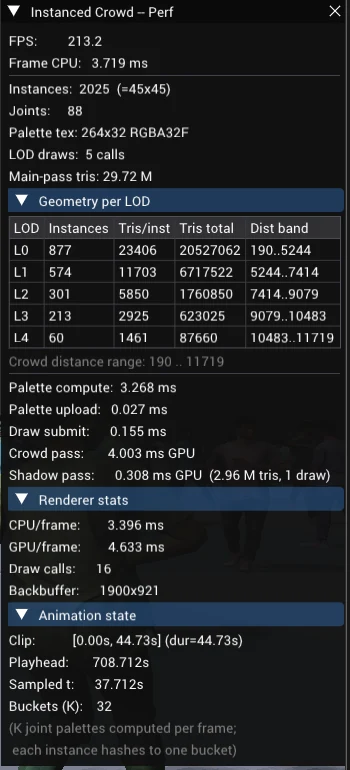
Example: Checking a LOD set in a crowd.
